
How to Try Braided Hairstyles on Your Photo With AI
By Overchat Editorial Team — Beauty & Imaging Desk. Expert editorial guide based on the target product workflow and documented capabilities, updated October 2026.
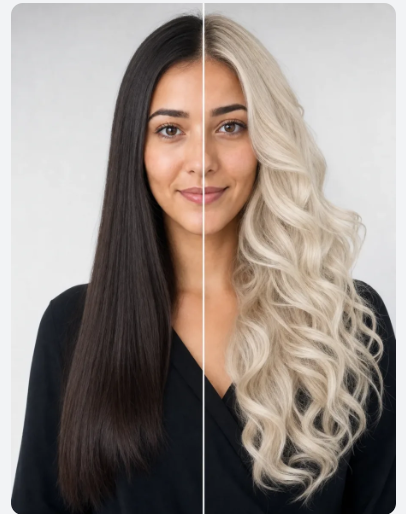
Original editorial illustration created specifically for this guide.
To try braids with Overchat AI, use the Braids Filter page as the entry point, upload a portrait and continue in the AI Hairstyle Generator. The page opens the hairstyle studio with box braids selected; sign-in and Overchat credits are required for generation.
What you need before you start
Prepare a clear portrait. The better the source, the less the model has to guess. Use a file with clear subject boundaries, normal lighting and enough resolution to inspect the result afterward. If the task involves a person, avoid heavy beauty filters, extreme perspective and motion blur because those can make identity preservation harder.
The goal is a realistic hairstyle preview. Keep that outcome in mind before you upload anything: a result for a quick social post can tolerate more stylization than a planning reference, product image or professional profile. A hairstyle preview is a visual planning aid. Real hair density, texture, cowlicks and a stylist’s technique can change the final result.
How to do it with Overchat AI
Open the dedicated Braids Filter page. This is the target workflow used throughout the instructions below.
Step 1: Choose the cleanest source
Start with a clear portrait. Pick a source where the relevant subject is visible and not hidden by cropping, glare, compression or foreground objects. If you have several candidates, prefer the image that looks ordinary and representative rather than the most heavily edited one.
Step 2: Open the dedicated Overchat tool
Upload your photo and click Try braids. Overchat opens its AI Hairstyle Generator with the braids style already selected; sign in, and the generation runs there (it uses Overchat credits).
Step 3: Upload and frame the input
Check that the full head, hairline and shoulders are visible before generating. Braids need enough space around the scalp and sides of the face for the sections to read clearly.
Step 4: Generate in the Hairstyle Generator
Run one generation with the selected braid style. If you want a different construction, choose that style in the hairstyle studio rather than treating all braids as the same look.
Step 5: Inspect the result at full size
Inspect the result at full size. Check part lines, braid thickness, scalp visibility and the places where braids pass behind ears or shoulders; impossible joins are a common failure.
Step 6: Regenerate only if needed
If something is wrong, correct one cause. A cleaner source often helps more than repeated blind generations. Adjust framing, use a better-lit photo or choose a frame with less occlusion, then run the tool again. Stop when the result is credible for the intended use rather than chasing cosmetic changes that introduce new artifacts.
Step 7: Download the final file
Download the final image and inspect it at the size where you plan to use it. Look for edge halos, compression and broken braid continuity.
Quick workflow checklist
| Step | What to do | What to check |
| 1 | For Braids Filter, start with a clear portrait. The source should be sharp enough that the model can see the boundaries and identity details relevant to the edit. Avoid screenshots that have already been heavily compressed if you have the original file. | Sharp, well-framed source |
| 2 | Upload your photo and click Try braids. The Hairstyle Generator opens with braids selected; sign in and generate with Overchat credits. | Correct tool and intended effect |
| 3 | Check the full head, hairline and shoulders, then inspect part lines, braid thickness and continuity after generation. | Identity/edges/geometry |
| 4 | If your first Braids Filter result is not convincing, change one variable at a time: use a cleaner source image, adjust the framing, or regenerate. Comparing controlled variations is faster than making many unrelated changes at once. | One change per retry |
How to get a better result
Braids are one of the hardest hairstyle edits because every strand structure has to remain continuous through turns, overlaps and occlusions. Inspect the part lines, braid thickness and the points where sections pass behind ears or shoulders; impossible joins quickly reveal an AI artifact.
The Braids Filter renders box braids; to compare cornrows, French, Dutch or Fulani braids, pick that style in the hairstyle studio the filter opens.
A useful quality rule for Braids Filter is to check what should not have changed. Background lines, clothing, facial identity, accessories, logos and proportions are strong reference points. When the model changes those areas unnecessarily, the generation may look impressive but it is less trustworthy as a representation of the requested edit.
Also judge the result in context. A realistic hairstyle preview may be viewed on a phone, printed, used as a planning reference or inserted into another creative workflow. Export size, crop and realism should match that destination. A technically larger file is not automatically better if the underlying generation has visible artifacts.
Common mistakes to avoid
- Using a low-resolution or heavily compressed source. The AI can create plausible detail, but it cannot know what the original file never captured.
- Treating the first Braids Filter result as ground truth. Generative output is probabilistic, so inspect it and rerun when important details are wrong.
- Changing too many variables at once. Controlled iterations make it easier to learn whether framing, source quality or the generated effect caused the problem.
- Ignoring the category limitation: A hairstyle preview is a visual planning aid. Real hair density, texture, cowlicks and a stylist’s technique can change the final result.
| Expert tip: view the image at normal size first, then zoom in on the scalp sections and braid crossings. Broken joins, inconsistent thickness and braids that merge into ears or shoulders are stronger warning signs than small texture differences. |
Frequently asked questions
Do I need editing experience to use Braids Filter?
No editing experience is needed, as the dedicated workflow avoids layers, masks and manual retouching. You should still review the generated image carefully to check that the braids, hairline and surrounding details look natural.
What should I do if the result looks artificial?
Try a sharper, evenly lit source photo with a clear view of your hair and fewer obstructions, such as hands or accessories covering it. Compare the result with the original at full size, paying particular attention to the hairline, braid edges and any unintended changes to your face.
Should I keep the original file?
Yes, save the original photo separately so you can compare versions and start again whenever needed. AI can introduce or alter visual details, so keeping the source helps you identify changes beyond the hairstyle.
Is Overchat AI the only way to do this?
No, other AI hairstyle tools and photo editors can also help you preview a braided hairstyle. This guide focuses on Overchat AI because it offers a dedicated workflow for the task without requiring you to build the effect manually in a general photo editor.